Millworker
 Align lines and reference boxes
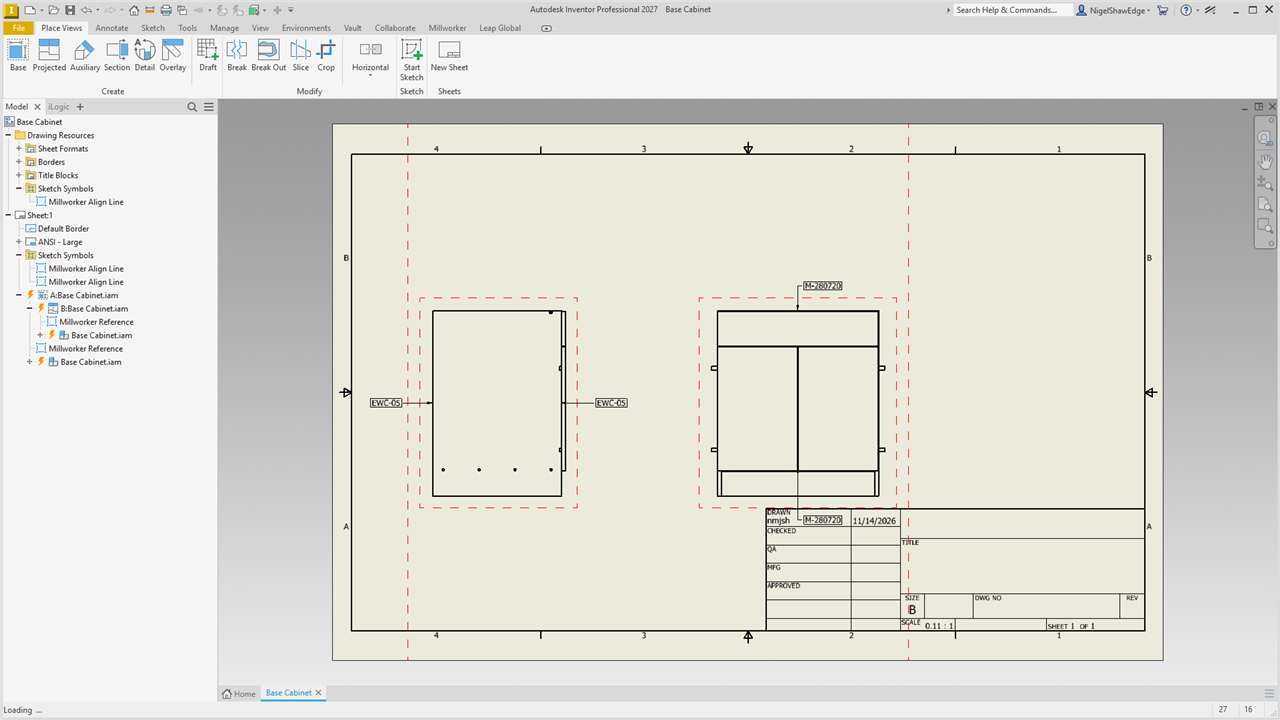
Red dashed lines to line leaders and text up on, and boxes round views, on a layer that never prints.
- Any drawing.
- Align panel → Vertical Line, Horizontal Line or Reference Box.
Vertical Line and Horizontal Line: a line the full height (or width) of the sheet follows the pointer; click to place it, and again for more. Line your leaders and notes up on it. Each is a sketched symbol (Millworker Align Line, made in the drawing the first time), so it can be moved, copied or deleted like any symbol.
Remove Reference Lines: deletes every align line and reference box in the drawing, on every sheet, in one undo step.
Reference Box: click views. Each gets a box round it, the margin out from the view, drawn in a sketch of the view (Millworker Reference), so it moves with the view. Click a view again to fit its box to it after the view has changed.
All of them go on the no-print layer named in Millworker Settings. The first time, the layer is made in the drawing (red, dashed); it is always set not to plot, so the lines and boxes show on screen but never print. To use a layer of your own, put it in your drawing template and give its name in Settings.