 Millworker
 Make Flat
Flatten curved wood panels: see the panel and its proposed flat side by side, sized from the panel, and save it as its wood flat.
- An assembly (or a part) with curved panels: an even-thickness bend, like a radius door or a curved end panel.
- Flat panel → Make Flat. A window opens beside Inventor and stays open while you work.
- The window lists the model's curved panels: Flattened ✓ (green), Not yet, Didn't unfold (red), or Out of date (orange: the panel changed size after its flat was saved). In a part, the part itself is the panel.
- Pick one in the list, or press Pick in model and click it in the assembly. It lights up in the model.
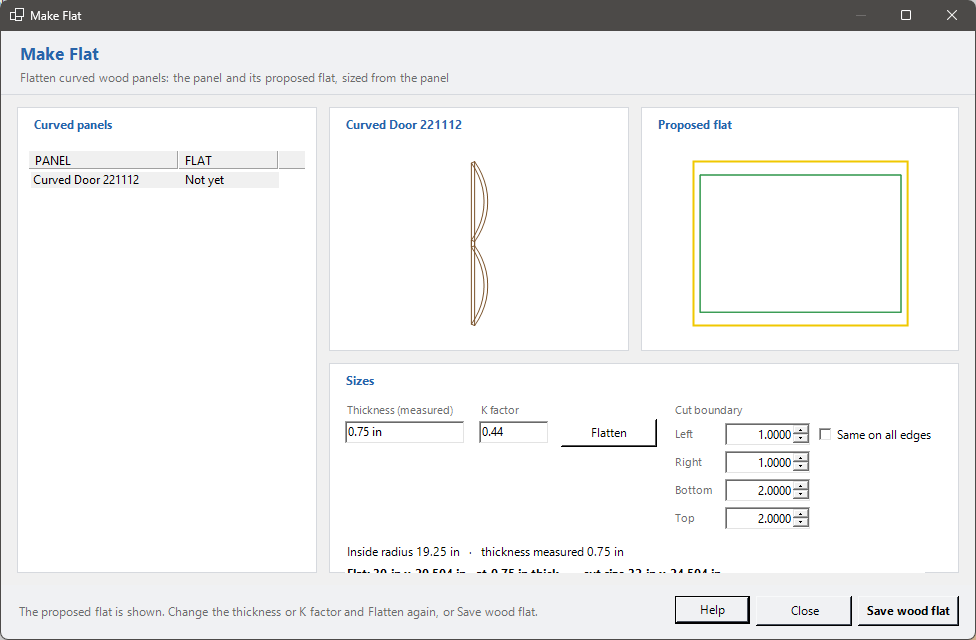
- The window shows the panel (looking down its bend) beside its proposed flat, green when it flattens. Nothing is added to the model.
- Under them are the sizes taken from the panel: Thickness (measured), the inside radius, the K factor (where the neutral layer sits through the thickness; 0.44 suits most wood) and the flat length and width. Change the thickness or K factor and press Flatten (or Enter).
- Cut boundary adds stock round the flat for cutting it out, a box for each side, stacked: Left, Right, Bottom and Top (as the flat is drawn). Tick Same on all edges beside the Left box and it sets all four. As you change them, a yellow line shows the boundary round the flat, and the cut size shows beside the flat size. The last boundary you saved is where the next panel starts.
- Save wood flat keeps it. Save the panel (or the assembly) to keep the link.
There's no sheet metal to set up. Make Flat keeps a part out of sight, <panel> WF.ipt beside the panel, that derives the panel (it follows changes to it) and is unfolded at the thickness and K factor shown. The panel gets the iProperty MillworkerWF = WF (add it to labels and reports to flag the panel), and NestCAM nests the flat instead of the curved panel.
The cut boundary is built into the flat part, so its flat pattern is the size to cut: a 25" x 25" flat with 1/4" on each side is 25 1/2" x 25 1/2". It's driven by the parameters MW_CutLeft, MW_CutRight, MW_CutBottom and MW_CutTop in the flat part (with Same on all edges, the other three follow MW_CutLeft).
In drawings, Show Flat places a panel's flat, and the Drawing Builder gives each flattened panel a sheet with its flat.