 Millworker
Help / Joins
 Miter Join
Part
Miter two panels at their corner, with a gap, and mark the miters for the nest.
Set up
- A part with two panels meeting at a corner, butted or overlapping (a waterfall end and a top, for example).
- Click Miter Join (Joins panel).
- Click panel 1, then panel 2. The parts cut off preview in red.
- Check the Gap (starts as
MW_MiterGap, 0.01″). - Click the next body to make this miter and start the next, or OK.
Screenshot placeholder
images/miter-join-preview.png
1600 × 900 px
Two 3/4 in panels meeting at a right-angle corner, both picked, red preview of the triangles cut off each.
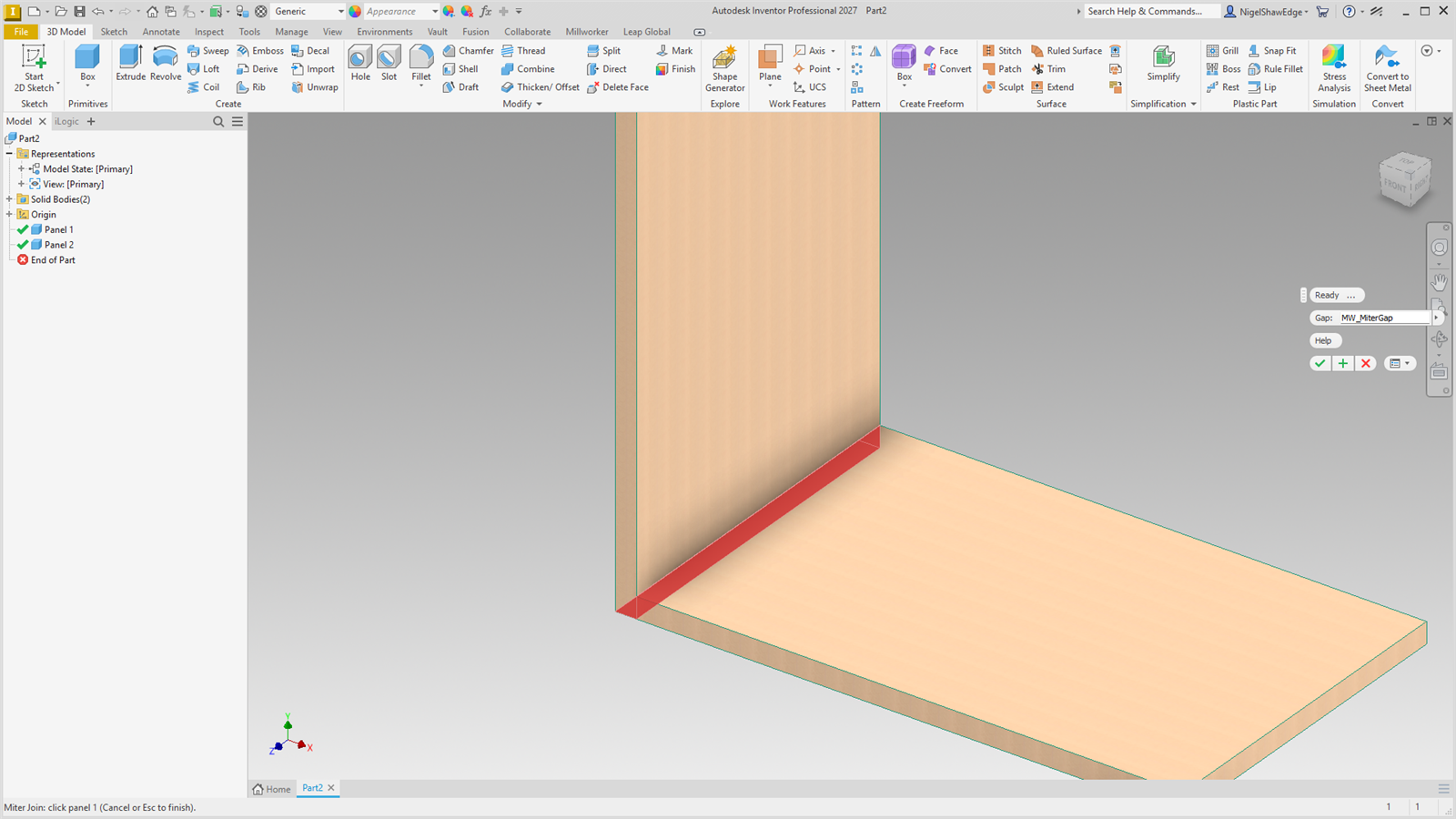
- The miter plane runs through where the outside faces meet and where the inside faces meet (hidden construction geometry).
- Each panel is trimmed half the gap short of it.
- A panel that butts against the other's inside face is first extended to its outside face.
- The mitred faces are marked as miters for the nest (see Mark Miter).
Parameters: MW_MiterPanels#_Gap and _Extension.